
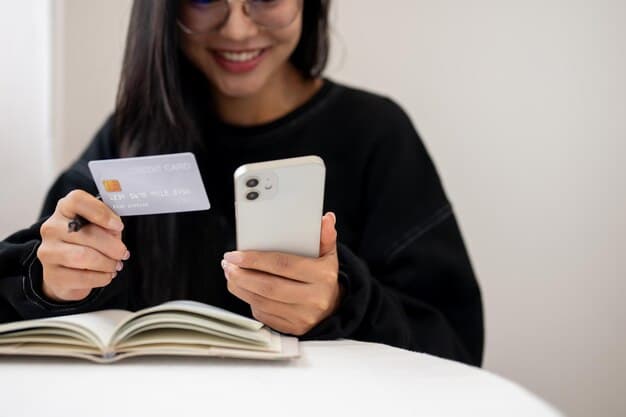
The basic steps to add your card
Open the Wallet app on your iPhone or iPad, tap the plus sign in the upper right corner, and select Credit or Debit Card. You can then either photograph the front of your card (the app will read the number, expiration date, and cardholder name) or enter those details manually. After you enter or confirm the information, Apple will ask for your card's CVV — the three-digit security code on the back — and your billing zip code. Tap Next, and your card issuer will send you a verification code, usually by text or email. Enter that code into Wallet, and your card is added.
The entire process typically takes two to five minutes. Your card appears in Wallet when ready, but you cannot use it for payments until your issuer completes the verification step. Some issuers verify when ready; others take a few hours. If verification fails, Wallet will tell you why — usually because the information you entered does not match what the card issuer has on file.
Key Takeaways
- You add a card by opening Wallet, tapping the plus sign, selecting Credit or Debit Card, and either photographing your card or typing in the details.
- Apple will ask for your CVV and billing zip code, then send a verification code to your phone or email that you must enter to complete the process.
- Your card issuer controls whether verification happens when ready or takes a few hours; some banks and card companies verify faster than others.
- If verification fails, the error message will usually tell you whether the problem is a mismatched address, wrong CVV, or account issue with your issuer.
What happens if your card issuer does not support Apple Wallet
Not every bank or card company has set up the systems to verify cards in Apple Wallet. If your issuer does not support it, you will see an error message during the verification step that says something like "This card cannot be added to Wallet" or "Your card issuer does not support this feature." This does not mean your card is declined or that anything is wrong with your account — it means your issuer has not built the connection to Apple's verification system.
Smaller regional banks, some credit unions, and certain store-branded cards are more likely to lack this support than large national issuers. If you see this message, you have two options: contact your card issuer to ask whether they plan to add Wallet support, or use a different card if you have one from an issuer that does support it. You can still use the unsupported card for in-person purchases the old way — by handing it to the cashier or inserting it into a chip reader.
How to verify your identity if the bank asks for more information
Some card issuers, particularly those with stricter security practices, may ask you to verify your identity beyond the CVV and zip code. They might text you a code to confirm, call you to verify the request, or ask you to log into your online banking account to authorize the Wallet addition. This extra step is a security measure — the issuer is confirming that you (not someone with your card number) are trying to add the card to a phone.
If your issuer asks you to log into your banking app or website, do that through the app or website directly, not through a link in a text or email. Open your bank's app yourself, navigate to settings or security, and look for an option like "Manage devices" or "Authorize Apple Wallet." Some banks let you approve the addition right there; others will send you back to the Wallet app to complete it. If you are unsure whether a verification request is real, hang up or close the message and call your card issuer's customer service number on the back of your card.
Why your card might fail verification
The most common reason verification fails is that the information you entered does not match your issuer's records. If you typed your name as "Robert" but your card says "Bob," or if your billing address has a typo, the verification will fail. The same applies if you enter the wrong CVV or if the zip code does not match the address on file.
Less commonly, verification fails because your card issuer's system is temporarily down, because you have reached a limit on how many devices you can add the card to, or because your account has a fraud flag or other security hold. If you see a specific error message, read it carefully — it usually tells you what went wrong. If the message is vague, contact your card issuer's customer service line. Have your card in front of you when you call, and be ready to confirm your identity.
Adding multiple cards and managing them in Wallet
You can add as many cards as you want to Wallet. Each one appears as a separate card in the app, and you can swipe between them when you are ready to pay. To add a second card, follow the same process: open Wallet, tap the plus sign, select Credit or Debit Card, and enter or photograph the new card's details.
You can set a default card — the one that appears first and is used automatically if you do not select a different one. To change your default, open Wallet, tap and hold the card you want to make default, and select Set as Default. You can also remove a card from Wallet at any time by tapping and holding it and selecting Remove. Removing a card from Wallet does not close the card or affect your account; it just takes it out of the app.
Using your card in Wallet for payments
Once your card is verified and appears in Wallet, you can use it to pay at any store, restaurant, or other business that accepts contactless payments or Apple Pay. Hold your iPhone or iPad near the payment terminal, and the terminal will prompt you to authenticate — either with Face ID, Touch ID, or your device passcode. Confirm, and the payment goes through. You do not have to open the Wallet app first; just wake your phone and hold it near the terminal.
Your card issuer and Apple do not share your actual card number with the merchant. Instead, a unique token specific to that transaction is sent, which protects your card information. You will see the transaction appear in your card issuer's app or statement just as you would for any other purchase. If you have questions about a charge, contact your card issuer, not Apple.
Troubleshooting when Wallet will not add your card
If Wallet will not let you add a card at all — if the plus sign does not work or the app crashes when you try — first make sure your iPhone or iPad is running the latest version of iOS or iPadOS. Go to Settings > General > Software Update and install any available update. Then try adding the card again.
If the app still will not work, try closing Wallet completely and reopening it. If that does not help, restart your device. If you still cannot add a card after restarting, and you have confirmed that your card issuer supports Wallet, contact Apple Support through the Support app on your device or at apple.com/support. Have your card issuer's name and the exact error message ready to share.
Frequently Asked Questions
Can I add a card to Apple Wallet if I do not have the physical card with me?
Yes. You can add a card using the card number, expiration date, and CVV from a statement, email receipt, or any record where you have those details. You do not need the physical card in front of you, though having it makes it easier to photograph rather than type the information.
What if I add a card to Wallet and then lose my phone?
Your card information is encrypted and stored securely on your device. If you lose your phone, you can remotely erase it using Find My iPhone, which will remove the card from that device. Your actual card account is not affected. You can add the card to a new phone once you get one.
Do I need to tell my card issuer before adding my card to Wallet?
No. Your issuer will see the Wallet addition request when you try to verify, and they will send you the verification code at that point. You do not need to call them first. However, if you have fraud alerts or travel notifications set on your account, those may interfere with verification, so you might want to check those settings beforehand.
Can I use my card in Wallet if my phone battery is very low?
iPhones can use Apple Pay even when the battery is critically low, down to around 1 percent. Your phone does not need to be fully powered on — it can be in low-power mode or even appear to be off, as long as there is enough charge for the payment system to work. Once your battery dies completely, you cannot use Wallet until you charge the phone.
What if my card number changes but I already added it to Wallet?
If your card issuer sends you a replacement card with a new number (for example, after fraud or a card renewal), you will need to add the new card to Wallet separately. Remove the old card from Wallet by tapping and holding it and selecting Remove, then add the new card using the same process you used the first time. Your old card will stop working once the new one is activated.